Batch Run & History
Two sides of the same coin: Batch Run is "do everything once," History is "what happened and when."
Batch Run
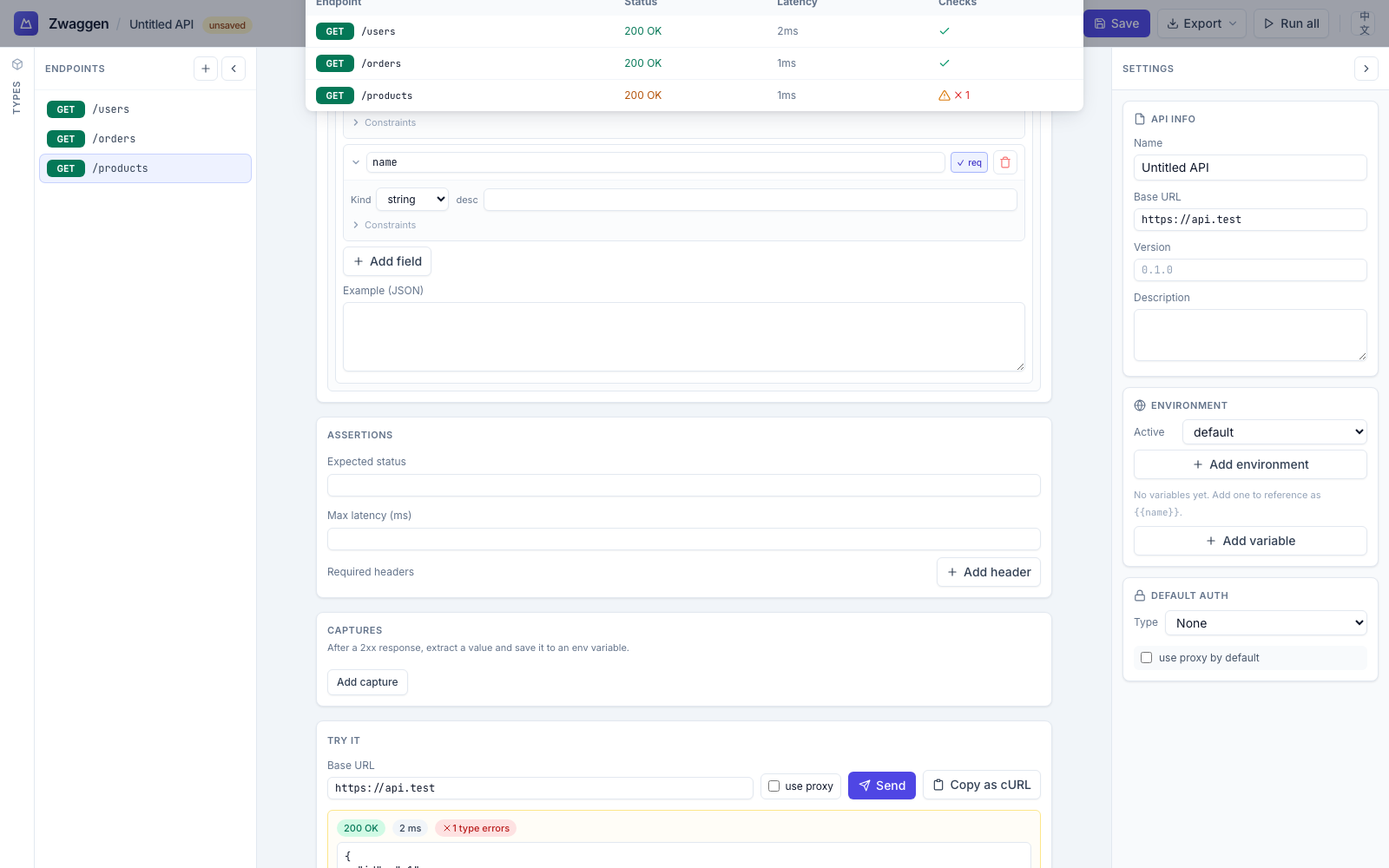
Open the Batch panel from the top bar. You see every endpoint listed with a checkbox.
- Run all runs every checked endpoint against the active environment, in order.
- Summary — N passed / M failed chips. Click a failed endpoint to see its validation or assertion error.
- Re-run failures — re-runs only endpoints whose last batch attempt failed. Useful when you've fixed a type.
Known limitation
Today, if an endpoint has a recent successful run in History, Batch may reuse that response rather than fire a fresh one. A "fresh network calls" toggle is planned; track it in the repo's TODO.
Typical use
- Post-deploy smoke test — switch environment to
staging, Run all, see red immediately if anything drifted. - Post-spec-change sanity check — you just changed a shared type. Run all to see which endpoints now fail validation.
History
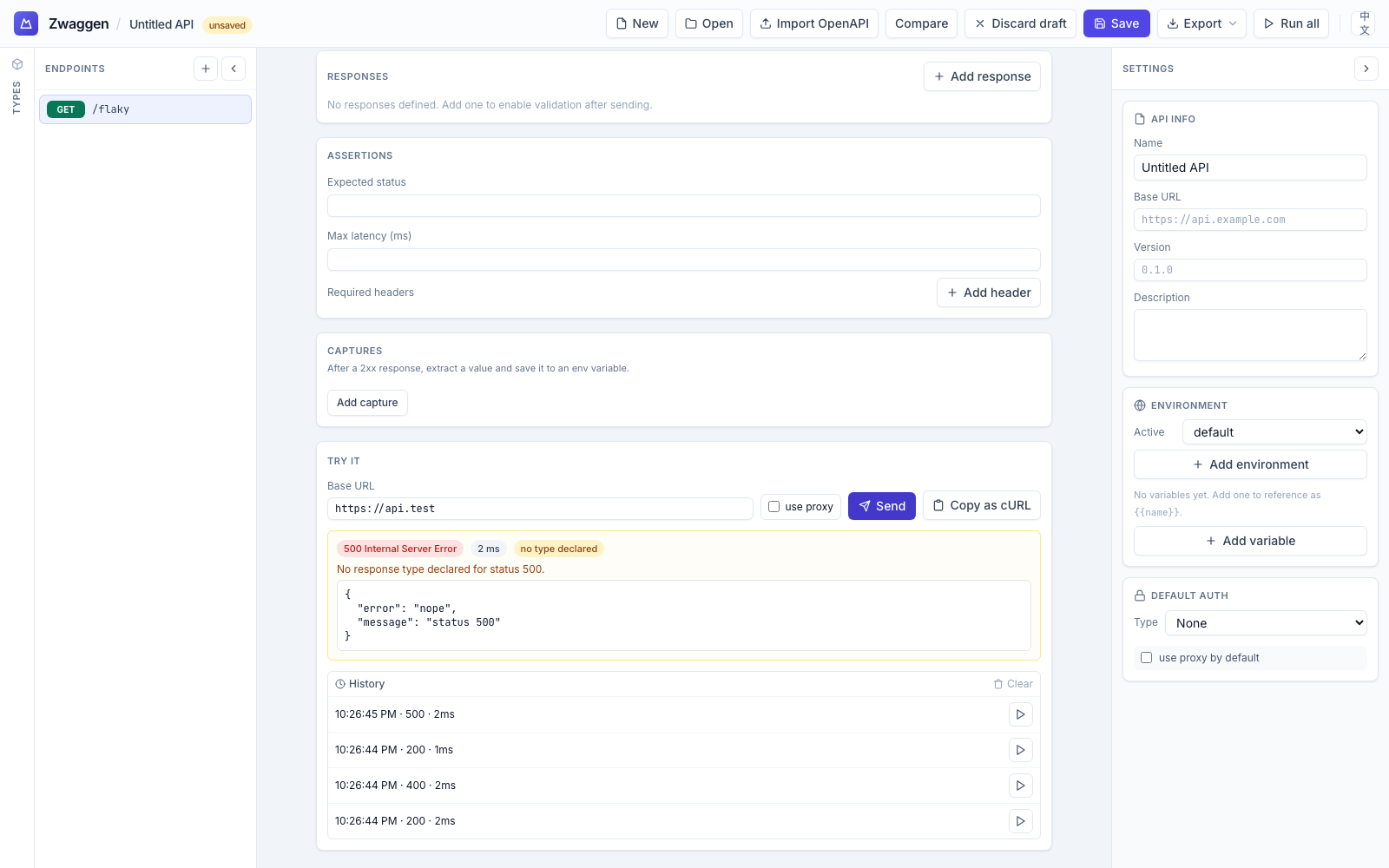
Open the History drawer (clock icon, top bar). Entries stack newest-first:
- Endpoint name + method badge.
- HTTP status.
- Latency.
- Validation icon (green ✓ / red ✗).
- Timestamp.
Open an entry
Click any entry to open a read-only view of:
- the exact URL + headers + body that were sent,
- the exact response (status, headers, body),
- the validation result (passing or the specific field mismatches),
- any assertion results.
Re-run
From a history entry, click Re-run to fire the same request again. Useful for flaky endpoints or for repro-ing a specific failure.
Clearing
Clear history wipes every entry from IndexedDB. History is per-browser — switching machines means starting fresh.
Storage
History is persisted via idb-keyval in the browser's IndexedDB, so it survives reload and tab close. On a shared computer, clear history before handing over.